By
In this guide
- Best GTA 6 settings at a glance
- How does GTA 6 perform on PS5 and Xbox Series X/S?
- 1. Best GTA 6 display settings: HDR, brightness and motion blur
- 2. Best GTA 6 controller settings for aiming
- 3. Best camera settings for driving and exploration
- 4. Best PS5 and PS5 Pro settings for GTA 6
- 5. Best Xbox Series X settings for GTA 6
- 6. Best Xbox Series S settings for GTA 6
- 7. Best GTA 6 audio settings
- 8. Best HUD and accessibility settings
- 9. How to make GTA 6 feel smoother at 30fps
- 10. Common GTA 6 settings mistakes to avoid
- Frequently asked questions
- Final verdict: the best GTA 6 settings depend on how you play
The best GTA 6 settings for smoother controls, sharper visuals, better HDR and a more immersive experience on PS5, PS5 Pro, Xbox Series X and Series S.
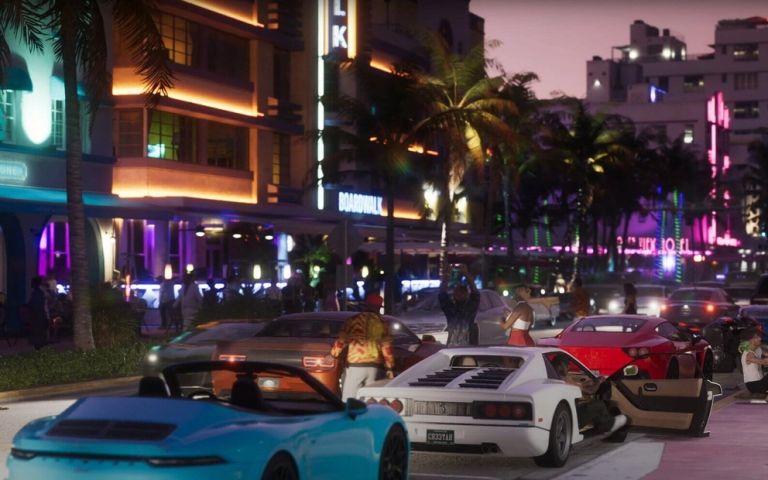
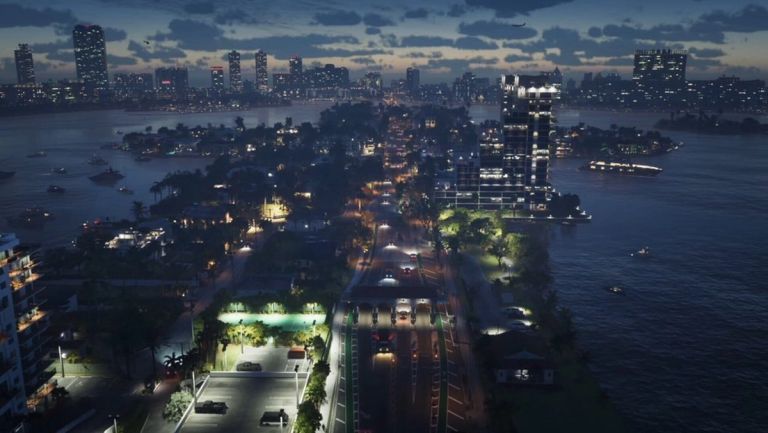
Grand Theft Auto 6 brings Vice City's neon-lit streets, sprawling highways and the diverse landscapes of Leonida to life with an extraordinary level of detail. But even with Rockstar's impressive technology, getting the best experience isn't necessarily as simple as starting the game and accepting every default setting.
Your controller sensitivity, television configuration, HDR calibration and camera preferences can all make a noticeable difference. Some settings improve visibility during intense police chases, while others make aiming easier or reduce distracting screen effects.
There's also an important limitation to understand: GTA 6 targets 30 frames per second on PS5, PS5 Pro, Xbox Series X and Xbox Series S. Unlike GTA 5's current-generation versions, GTA 6 doesn't offer a selectable 60fps Performance mode at launch.
That means the best settings are about improving responsiveness, image clarity and comfort rather than unlocking a higher frame rate.
Here's how to configure GTA 6 for the best possible experience on your console.
Best GTA 6 settings at a glance
If you want to jump straight into Jason and Lucia's story, these are our recommended starting settings.
| Setting | Recommended configuration |
|---|---|
| Graphics mode | Fixed 30fps presentation; no selectable mode |
| Motion Blur Strength | 0 for clarity; 2–3 for a softer cinematic look |
| HDR | On with a correctly calibrated HDR display |
| Horizontal Look Sensitivity | 7 |
| Vertical Look Sensitivity | 7 |
| Horizontal Aim Sensitivity | 6 |
| Vertical Aim Sensitivity | 6 |
| Aim Response Curve | Standard to begin with |
| Targeting | Partial |
| Aim Assist Strength | 4 |
| Camera Shake | Off for a steadier image |
| Camera Bob | 0–2 for reduced movement |
| Stick Deadzones | Lowest stable values without drift |
| Subtitles | Medium or Large |
| Minimap | Always On for easier navigation |
| TV Picture Mode | Game Mode |
| TV Motion Smoothing | Off |
These are balanced starting points, not settings that everyone must use. Someone who enjoys cinematic driving might prefer more motion blur and camera movement, while a player focused on precise shooting may prefer to minimise both.
How does GTA 6 perform on PS5 and Xbox Series X/S?
Before changing anything, it's worth understanding what each console actually delivers.
Rockstar has confirmed that GTA 6 uses different rendering and upscaling technologies depending on the hardware. These differences cannot be overridden through the game's settings menu.
| Console | Internal resolution | Upscaling/output | Frame-rate target |
|---|---|---|---|
| PS5 | 1440p | Rockstar TAA to 4K | 30fps |
| PS5 Pro | 1440p | PSSR2 to 4K | 30fps |
| Xbox Series X | 1440p | Rockstar TAA to 4K | 30fps |
| Xbox Series S | 720p | AMD FSR 4 to 1080p | 30fps |
The Series S image is also composited with a 4K interface, as are the other versions. That doesn't mean its underlying game graphics are rendered at 4K.
These figures come from Rockstar's technical explanation published by Wccftech.
The differences go beyond resolution.
PS5 Pro: The most impressive visual presentation, with PSSR image reconstruction and ray-traced shadows exclusive to Sony's upgraded console. Digital Foundry's testing also found substantially more consistent frame pacing.
PS5: A detailed image with broadly good 30fps performance, although demanding scenes can produce small frame-rate dips.
Xbox Series X: A very similar overall experience to the base PS5, including comparable resolution and occasional drops in especially busy scenes.
Xbox Series S: The biggest compromises. Although the game retains much of Leonida's visual complexity, reduced resolution and less precise effects are noticeable. Digital Foundry also reported prolonged dips into the mid-20fps range during ordinary gameplay.
For players with a choice of consoles, PS5 Pro currently provides the strongest technical experience. However, the base PS5 and Xbox Series X remain capable ways to enjoy the game.
1. Best GTA 6 display settings: HDR, brightness and motion blur
Start by pausing the game, opening Settings, and moving to Display.
This menu contains the options most likely to affect how comfortable and readable GTA 6 looks on your television.
Motion Blur Strength: 0 for clarity
Motion blur is one of the first settings worth experimenting with.
It can make a 30fps presentation look more cinematic by blending movement between frames. However, it also softens moving objects, especially when rotating the camera quickly.
Our recommendations are:
- 0: Best for sharpness and identifying details while moving.
- 1–2: A compromise between clarity and cinematic movement.
- 3: Worth trying if you prefer the game's default film-like presentation.
There's an important trade-off. Turning motion blur completely off doesn't increase the frame rate. At 30fps, it can actually make movement appear more juddery because each individual frame remains sharper.
Try driving along a busy Vice City road, rotating the camera sideways and comparing values of 0 and 3. Keep whichever feels better to your eyes.
HDR: calibrate it properly
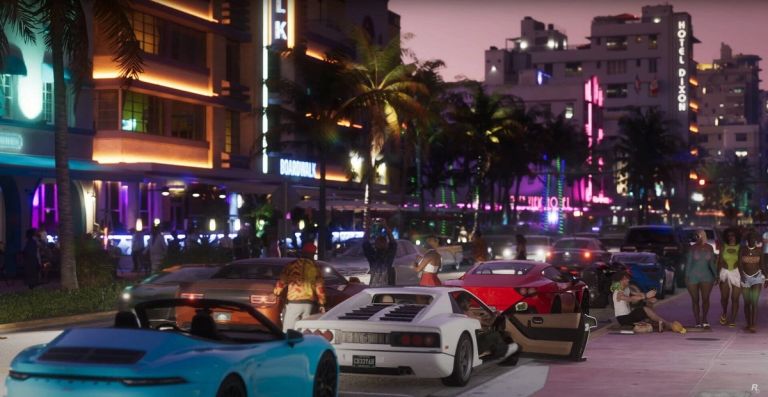
GTA 6 makes extensive use of sunlight, artificial lighting and reflections. The difference between a correctly calibrated HDR television and a poorly configured one can be significant.
With the right setup, you should be able to appreciate bright coastal sunshine, glowing neon signs and detailed nighttime environments without excessively bright highlights or crushed shadows.
For HDR televisions, enable HDR and visit the game's Display → HDR Calibration menu.
The calibration includes controls for maximum brightness, black levels and paper white.
Here's what matters:
Maximum Brightness
This should correspond to your television's actual HDR capabilities. A display capable of strong HDR highlights needs a different value from an entry-level HDR television.
Avoid copying an arbitrary brightness number from somebody else's setup.
Black Levels
Adjust this so dark areas retain believable depth without hiding important details. Nighttime streets should look dark, but not like featureless patches of black.
Paper White
This influences the brightness of reference whites and much of the image's overall presentation. Choose a comfortable level rather than making every bright surface intensely luminous.
If your television has weak HDR capabilities and the result looks washed out, try comparing the calibrated HDR image with SDR. A well-configured SDR picture can look better than badly implemented HDR on a budget display.
Brightness isn't a substitute for HDR calibration
Increasing brightness excessively can make nighttime visibility easier, but it can also destroy contrast and undermine the game's lighting design.
Rather than immediately raising everything, test the picture in three situations: a sunny outdoor scene, an interior with mixed lighting and a genuinely dark nighttime location.
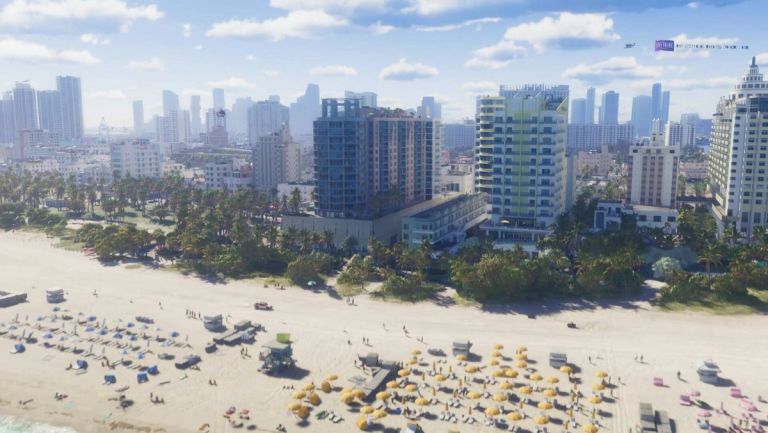
You want a setting that works in all three.
2. Best GTA 6 controller settings for aiming
GTA 6 offers separate settings for looking around and aiming weapons, along with acceleration, response curves and stick deadzones.
Open Settings → Controller.
For a balanced controller configuration, start with the following values.
| Controller setting | Suggested starting value |
|---|---|
| Horizontal Look Sensitivity | 7 |
| Vertical Look Sensitivity | 7 |
| Horizontal Aim Sensitivity | 6 |
| Vertical Aim Sensitivity | 6 |
| Look Acceleration | Default (7) |
| Aim Acceleration | Default (7) |
| Aim Response Curve | Standard |
This configuration keeps general camera movement reasonably responsive while making weapon aiming slightly more controlled.
Look sensitivity versus aim sensitivity
Look sensitivity determines how quickly your camera moves while exploring the world.
Aim sensitivity controls movement when you're lining up a shot.
The two settings shouldn't automatically be identical.
For example, you might want to turn around quickly when a police vehicle approaches from behind, but you probably don't want your crosshair flying past an enemy when you're attempting a precise shot.
Starting at 7 for looking and 6 for aiming provides a useful balance.
If the camera feels sluggish, try increasing horizontal look sensitivity to 8 or 9. If aiming feels too twitchy, lower aim sensitivity by one increment.
The most useful adjustment method is to change one value at a time, then test it in a repeatable situation.
Which aim response curve is best?
GTA 6 provides several response-curve options, including Standard, Linear, Precision and Aggressive.
These alter how stick movement translates into camera or aiming movement.
For most newcomers, Standard is the sensible starting point because it provides the intended baseline controller behaviour.
Players who prefer a more direct relationship between stick movement and aiming can experiment with Linear. Precision is worth testing if you frequently overshoot targets during small adjustments.
There isn't a universally superior curve. A configuration that feels excellent during careful aiming may feel less comfortable when rapidly switching targets.
Best targeting and aim assist settings
Open Settings → Gameplay and find the combat settings.
GTA 6 offers three targeting approaches:
| Targeting mode | Best suited for |
|---|---|
| Lock-On | Players who want stronger aiming assistance |
| Partial | A balance between assistance and manual control |
| Free Aim | Players who prefer full control over targeting |
We recommend Partial targeting for most players.
It helps move your aim toward nearby enemies without completely locking onto them. This makes gunfights more approachable while retaining a satisfying degree of manual control.
Start with Aim Assist Strength at 4. Lower it if the assistance feels intrusive, or increase it if you're struggling to track enemies.
It's also worth leaving Drive-By Assist enabled. Shooting accurately from a fast-moving vehicle is challenging enough without having to fight the targeting system.
Adjust controller deadzones carefully
A deadzone determines how far an analogue stick must move before the game recognises an input.
Large deadzones can make controls feel less immediate. Very small deadzones, however, can expose minor imperfections in the controller and cause unintended movement.
The best approach is to leave the default values initially, then gradually reduce them if your controller is in good condition.
If the camera moves when you're not touching the stick, increase the affected deadzone until the drift disappears.
Don't assume zero is automatically best.
3. Best camera settings for driving and exploration
GTA 6 isn't solely about shooting. Much of the experience involves driving, exploring, walking through crowded areas and enjoying Rockstar's world.
Camera settings affect all of these activities.
Open Settings → Camera.
Camera Shake: Off for a steadier picture
Camera shake adds movement during certain gameplay events.
It can make collisions, explosions and action sequences feel more dramatic, but it can also make it harder to follow what's happening.
Turning it off is a good starting point for players who prefer a stable image, especially when driving at speed or playing on a large television.
If you enjoy a more cinematic presentation, leaving it enabled is perfectly reasonable.
Camera Bob: lower it if movement feels excessive
Camera bob adds movement associated with walking and running.
We recommend starting around 0–2 if you prefer minimal motion. You can raise it gradually if the result feels too static.
This is particularly useful for players who experience motion sickness or discomfort from frequent camera movement.
Camera follow speed and height
GTA 6 provides camera settings for on-foot movement and vehicles.
The default follow-speed values provide a sensible baseline. Try them before making significant changes.
If the camera feels slow to follow your character or vehicle, experiment with increasing the appropriate follow-speed setting slightly.
Camera height is more subjective.
A higher view can improve your awareness of surrounding traffic and obstacles. A lower view may feel more immersive, particularly when travelling through the city.
For normal gameplay, we would start with the standard camera height and only change it when you can identify something that needs improving.
4. Best PS5 and PS5 Pro settings for GTA 6
You can optimise the experience further through PlayStation's own system settings.
These adjustments won't override GTA 6's frame-rate limit, but they can improve the way your console communicates with your television.
Recommended PS5 video configuration
From the PlayStation home screen, visit Settings → Screen and Video → Video Output.
Use the following configuration where supported:
| PS5 video setting | Recommendation |
|---|---|
| Resolution | Automatic |
| HDR | On When Supported |
| Adjust HDR | Complete calibration |
| ALLM | Automatic |
| VRR | Automatic on compatible displays |
| 120 Hz Output | Automatic for supported games |
Setting Resolution to Automatic allows the PS5 to select the highest supported display resolution.
For HDR, Sony recommends using the console's dedicated calibration process. You can follow the instructions in PlayStation's official HDR guide.
Calibrate your console first, then adjust GTA 6's own HDR settings.
Does enabling 120Hz improve GTA 6?
Not in the way many players hope.
A 120Hz television can refresh its display up to 120 times per second, but GTA 6 is still generating frames toward a 30fps target.
Enabling 120Hz doesn't turn the game into a 60fps or 120fps experience.
Similarly, VRR can help compatible games and displays manage uneven frame delivery, but it cannot generate additional frames. Its usefulness at approximately 30fps also depends on the display's supported VRR range and how the game outputs its frames.
There's no reason to buy a 120Hz television specifically to unlock a higher GTA 6 frame rate at launch.
PS5 Pro: should you change any special settings?
PS5 Pro automatically provides improvements through PlayStation Spectral Super Resolution and additional ray-traced shadows.
These enhancements don't require selecting a separate GTA 6 Performance or Fidelity mode.
If you already own a PS5 Pro, use its normal supported video-output settings and calibrate HDR appropriately. There's no need to hunt for an unannounced 60fps option.
Adaptive triggers and DualSense feedback
One advantage of the PlayStation version is GTA 6's integration with the DualSense controller.
Rockstar has confirmed extensive haptic feedback, with adjustable options.
For an immersive setup, keep vibration and adaptive trigger effects enabled initially.
However, the resistance from adaptive triggers won't suit everyone. If long driving sessions or repeated shooting make the triggers uncomfortable, lower or disable their resistance in the game's Controller settings.
This is about comfort and control, not increasing performance.
5. Best Xbox Series X settings for GTA 6
Xbox Series X offers a visual experience broadly comparable to the standard PS5.
For the best results, concentrate on your display configuration.
Visit Settings → General → TV & display options.
First, open 4K TV details to check which features your television supports.
For a compatible 4K HDR television, aim for:
| Xbox setting | Recommendation |
|---|---|
| Resolution | 4K UHD |
| Refresh Rate | 60Hz or 120Hz, as supported |
| Allow 4K | Enabled |
| Allow HDR10 | Enabled |
| Auto Low Latency Mode | Enabled |
| Variable Refresh Rate | Enabled if supported |
| HDR Calibration | Run the calibration tool |
You can find the HDR tool under TV & display options → Calibrate HDR for games.
Xbox provides a separate television calibration tool for picture adjustments.
Microsoft explains these features in its Xbox television setup guide.
Once configured, revisit GTA 6 and compare daytime and nighttime scenes.
Prioritise Game Mode
One of the most useful changes is enabling your television's Game Mode.
Televisions often apply processing intended to make films and television programmes look smoother or more dramatic. Unfortunately, some of that processing increases input latency.
Game Mode typically reduces this processing, making controller inputs feel more immediate.
For a game targeting 30fps, lowering unnecessary display latency is particularly worthwhile.
Also disable artificial motion smoothing or motion interpolation.
Depending on your television, this may be called TruMotion, Motionflow, Auto Motion Plus or a similar name.
These technologies can create an artificial impression of smoother movement, but they don't make GTA 6 render additional frames. They may also introduce visual artefacts or extra input delay.
6. Best Xbox Series S settings for GTA 6
Xbox Series S deserves special attention because its performance limitations are more pronounced.
Rockstar confirmed a 720p internal rendering resolution, upscaled using AMD FSR 4 to a 1080p game image.
Independent testing has also revealed more frequent frame-rate drops than on the more powerful consoles.
Unfortunately, there isn't a hidden setting that can turn the Series S version into the Series X version.
Our recommendations are straightforward.
Use the correct television output resolution. If you have a 4K television, you can still configure your Xbox to output 4K UHD where supported. However, this doesn't increase GTA 6's internal rendering resolution.
Enable Game Mode. Minimising television input lag can improve responsiveness, although it cannot eliminate game-engine frame-rate drops.
Avoid excessive sharpness. It might be tempting to turn up your television's sharpness setting to compensate for the softer image. Too much enhancement can introduce halos and make the picture look artificially processed. Start close to your television's neutral sharpness setting.
Reduce distracting motion effects. Lowering motion blur, camera bob or shake can make the picture easier to follow. These are clarity and comfort adjustments, not graphical performance improvements.
Keep the game updated. Future patches may improve performance, but no settings adjustment can currently guarantee a locked 30fps on Series S.
For Series S owners, the best approach is to concentrate on responsive controls and a clean picture rather than attempting to force the hardware into a higher rendering mode.
7. Best GTA 6 audio settings
Visual quality gets much of the attention, but sound plays a major role in the atmosphere of GTA 6.
Vice City's traffic, radio stations, crowded interiors and environmental details deserve more than a poorly configured speaker setup.
Open Settings → Audio.
Headphones versus television speakers
For players using headphones, spatial audio can make the world feel more convincing and provide a better sense of direction.
On PS5, visit Settings → Sound → 3D Audio (Headphones) and configure a profile.
Sony offers both preset profiles and personalised calibration. Its official 3D audio setup guide explains the process.
On Xbox Series X/S, use the appropriate headset audio format for your equipment. Windows Sonic for Headphones is an accessible starting option, while other spatial formats may depend on compatible hardware or licences.
If you're using a soundbar or surround-sound system, configure the console for the equipment you actually own rather than selecting an unsupported format.
Keep dialogue clearly audible
GTA 6's story relies heavily on conversations and character interactions.
Adjust the available volume controls so that voices remain understandable without removing the impact of vehicle engines, ambient sounds or music.
If dialogue gets lost during busy scenes, lowering music or effects slightly may be more useful than simply increasing the television's overall volume.
Streaming? Check licensed music
GTA 6 includes a Mute Licensed Music option in its Audio settings.
This is particularly useful for streamers and video creators who want to reduce the risk of copyrighted songs being included in their recordings.
However, it shouldn't be treated as a guarantee against every possible copyright claim.
8. Best HUD and accessibility settings
A good GTA 6 setup should make information easy to understand without covering the screen in unnecessary clutter.
Visit Settings → UI.
Subtitles: Medium or Large
We recommend enabling subtitles, particularly if you play with headphones or often miss dialogue during action-heavy sequences.
Medium is a reasonable starting size, while Large may be better for players sitting further from their television.
You can also adjust subtitle backgrounds and speaker names.
A subtle background can make text easier to read against bright skies or complicated urban scenery.
Minimap: Always On
GTA 6 offers different navigation experiences, including dynamic minimap options.
We recommend Minimap Always On for players who want straightforward navigation.
With the minimap visible, it's easier to recognise upcoming junctions, follow GPS routes and keep track of the surrounding road layout.
Players who prefer a cleaner, more immersive screen can use the dynamic alternatives.
Accessibility options worth exploring
Rockstar has included several useful accessibility features.
For example, Tap Assist can reduce repeated button presses, while Hold Assist can make certain sustained inputs easier.
There's also an option to simplify some minigame interactions.
Players sensitive to camera movement may benefit from disabling shake, lowering bob and enabling the Persistent Center Dot option.
None of these settings represents a compromise in how you're supposed to experience the game. They're there to make the experience work better for individual players.
9. How to make GTA 6 feel smoother at 30fps
If you're accustomed to modern games running at 60fps, GTA 6's 30fps presentation may initially feel less responsive.
At 30fps, a new game frame is produced approximately every 33.3 milliseconds. At 60fps, that interval is approximately 16.7 milliseconds.
The difference is particularly noticeable during rapid camera movements.
Although you cannot change GTA 6's frame-rate target, a few practical adjustments can help.
Start with television input lag. Enable Game Mode and remove unnecessary motion processing.
Tune your controller sensitivity. A sensitivity that is too high can make camera movement feel abrupt, while one that's too low may feel unresponsive.
Experiment with motion blur. Some players find a modest amount of blur makes 30fps feel more comfortable. Others prefer the clarity of a sharper picture.
Reduce excessive camera movement. Camera shake and bob can make an already busy scene harder to interpret.
Check for updates. Rockstar may release patches addressing bugs or performance issues, so keep both the game and console software current.
Keep your console properly ventilated. Ensure vents aren't obstructed and that the hardware has adequate airflow. This is good maintenance practice, though it won't increase the game's designed frame-rate limit.
Above all, don't confuse improving how a game feels with actually increasing its FPS. HDR, motion blur, controller sensitivity and television picture modes don't change the number of frames GTA 6's engine renders.
10. Common GTA 6 settings mistakes to avoid
There are several adjustments that sound useful but can actually make the experience worse.
Assuming 4K output means native 4K rendering. GTA 6 uses upscaling on every console. A 4K output signal doesn't mean the internal game image is rendered at that resolution.
Copying somebody else's HDR values. HDR calibration depends on your television's brightness and display capabilities. Settings that work on a premium OLED may look poor on a budget LCD.
Turning every sensitivity slider to maximum. Faster movement doesn't automatically mean better control. Excessive sensitivity can make precision aiming frustrating.
Setting deadzones to zero without testing. Small stick imperfections can produce unwanted movement when deadzones are too low.
Expecting VRR or 120Hz to unlock 60fps. These technologies have benefits in supported circumstances, but GTA 6's 30fps target remains unchanged.
Mistaking screen effects for performance problems. Motion blur and camera shake can create a sense of softness or instability even when the game is delivering frames consistently.
Frequently asked questions
Does GTA 6 have a 60fps mode on PS5?
No. GTA 6 targets 30fps on PS5, and there is no selectable 60fps Performance mode at launch.
Can PS5 Pro run GTA 6 at 60fps?
Not at launch. PS5 Pro provides better image reconstruction, exclusive ray-traced shadows and more consistent performance, but it retains the 30fps target.
Is GTA 6 better on PS5 or Xbox Series X?
The two standard consoles offer broadly comparable image quality and performance. The PS5 additionally benefits from Rockstar's DualSense integration and PlayStation-specific audio features. PS5 Pro is the stronger visual option overall.
What are the best GTA 6 settings for aim assist?
Start with Partial targeting and Aim Assist Strength at 4. This provides assistance without relying entirely on a full target lock. Increase or decrease assistance depending on your preferred difficulty.
Should I disable motion blur in GTA 6?
If clarity is your priority, try Motion Blur Strength at 0. If that makes 30fps camera movement feel too sharp or juddery, experiment with a modest amount of blur instead.
Can changing the settings fix GTA 6's frame-rate drops on Xbox Series S?
Not directly. Display and controller adjustments can improve comfort and responsiveness, but they cannot remove underlying game-engine performance limitations. Performance improvements would require optimisation or updates from Rockstar.
Are there Fidelity and Performance graphics modes?
No selectable Fidelity or Performance modes are available at launch. The main graphics differences are determined automatically by the console version.
Is HDR worth enabling?
Yes, if you have a capable HDR television and calibrate it properly. However, SDR may produce a more pleasing image on televisions with limited HDR brightness or poor tone mapping.
Final verdict: the best GTA 6 settings depend on how you play
GTA 6 is a visually ambitious game, and its fixed 30fps presentation reflects Rockstar's decision to prioritise the scale, simulation and detail of Leonida.
For most players, our ideal starting setup is simple: Partial targeting, moderate sensitivity, properly calibrated HDR, Game Mode enabled on the television and reduced camera shake.
Motion blur is worth adjusting according to personal preference rather than automatically switching off. Likewise, controller sensitivity should be refined after you've spent some time driving, exploring and engaging in combat.
On PS5 Pro, the enhanced image quality and steadier frame rate make it the strongest technical version. PS5 and Xbox Series X offer broadly similar experiences, while Series S owners will benefit most from realistic expectations and a well-configured display.
Ultimately, the goal isn't to make GTA 6 look like a competitive shooter with every effect removed. It's to preserve the atmosphere of Vice City while making the experience comfortable, responsive and enjoyable.
Once you've found a configuration that suits you, stop adjusting every slider and enjoy the world Rockstar has created.
For more on the game, visit GamerBolt's Grand Theft Auto VI hub, or read our GTA 6 setup guide for advice on preparing your gaming hardware.

Written by
Jay AllsoppMeet Jay, the visionary Founder of GamerBolt, who launched this gaming haven in 2010. A dedicated PS5 enthusiast, Jay thrives on the adrenaline rush of Call of Duty and the competitive spirit of EA Sports FC. His passion for gaming goes beyond play; it's about creating a community for fellow gamers to celebrate the worlds and stories they love; Gamerbolt.