

In this guide
- How to make a Discord server for gaming: the first steps
- Plan your Discord server channels around actual play
- Set roles and permissions before inviting everyone
- Use Community and onboarding when they solve a problem
- Moderation and AutoMod: protect the session
- The best Discord bots for gaming are the ones you need
- Run game nights with events and Stage channels
- Discord server name ideas, channel names and matching profiles
- Test the server before launch
- Invite friends and grow your gaming community
- FAQ
The quickest answer to how to make a discord server for gaming is to create the server, add a handful of useful channels, set permissions and invite a small test group. Start with somewhere to chat, somewhere to find teammates and somewhere to talk while playing. Everything else should earn its place.
For friends, keep the setup lean. For a clan, stream community or your own game, plan clearer rules, staff access and a welcoming route for newcomers. This guide takes you through that gaming Discord server setup, including a copyable layout, practical bot choices and names that do not sound like a corporate intranet.
How to make a Discord server for gaming: the first steps
Use Discord on desktop or in a browser for the initial build. The instructions below follow those interfaces; mobile navigation differs, and some administrative features are desktop-only.
- Find the Add a Server plus button in the server list on the left. Scroll down if it is hidden.
- Choose Create My Own, or use a template if its starting layout suits your group.
- Choose For me and my friends or For a club or community when prompted. This creation prompt is not a substitute for configuring Community features later.
- Enter your server name, add an optional icon and select Create.
- Build your core channels and permissions before sending invitations beyond your test group.
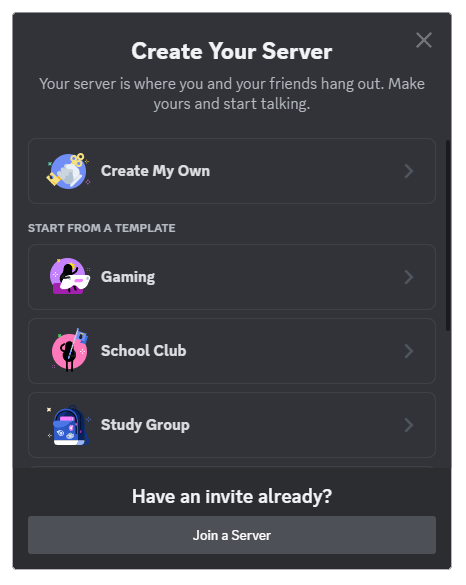
Discord’s server creation instructions cover the initial process, and you can change the name and icon afterwards. Do not spend your first evening perfecting an emblem while everyone waits for a voice channel.
Before building further, write one sentence describing the server’s job: “A relaxed place for our co-op group”, “Our clan’s competitive home” or “Player support and playtesting for our game”. Use that sentence to reject unnecessary channels.
Plan your Discord server channels around actual play
Organise the layout around three questions: where do I start, where do I find people, and where do we play? A newcomer should not need a guided tour to join tonight’s session.
Discord supports text and voice channels, categories for grouping them, and channel-specific permissions. Forum channels organise discussions into separate posts, but require Community to be enabled. For a small friends server, ordinary text channels are a perfectly sensible starting point.
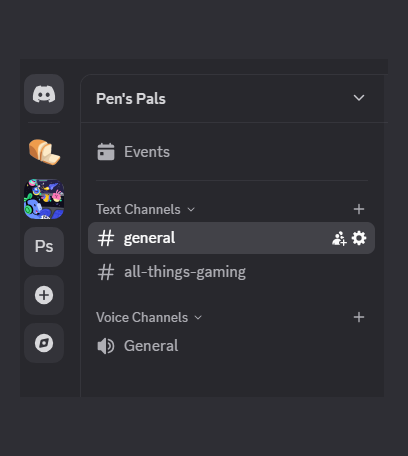
An example gaming server layout
Treat this as a suggested layout, not a compulsory shopping list. The full version suits a growing clan or community; a friendship group can begin with Start Here, General, Looking for Group and two voice rooms.
| Category | Suggested channels | Purpose and access |
|---|---|---|
| START HERE | #welcome, #rules, #announcements | Explain the server and publish important updates; keep rules and announcements staff-posted. |
| COMMUNITY | #general, #introductions, #clips, #off-topic | Everyday conversation and a low-pressure place to meet people. |
| FIND A GROUP | #looking-for-group, #event-chat | Recruit teammates and discuss planned sessions. |
| GAME HUBS | #game-chat, #builds-and-guides | Start with your main game; add more hubs when demand justifies them. |
| VOICE | Lobby, Squad 1, Squad 2, Chill | Separate active matches from social conversation. |
| STAFF | #mod-chat, #mod-alerts, #community-updates | Private coordination, moderation alerts and official Community updates. |
| OPTIONAL GAME SUPPORT | #bug-reports, #player-help | Useful for developers; consider forum channels after enabling Community. |
Give #looking-for-group a short posting template: game, platform, region, mode, start time and spaces available. Ask members to mention cross-play requirements and voice expectations rather than assuming everyone shares the same setup.
For game support, request reproduction steps, the game version and relevant screenshots. Keep account details, payment information and other sensitive material out of public bug reports.
Set roles and permissions before inviting everyone
Separate responsibility from identity. Moderator is a responsibility; Tank, Console Player and Raid Regular are interests. Do not attach powerful permissions to a fun badge simply because the name sounds important.
Create roles through Server Settings > Roles > Create Role. Discord’s permissions guide explains server, category and channel settings, including @everyone, which applies to every member.
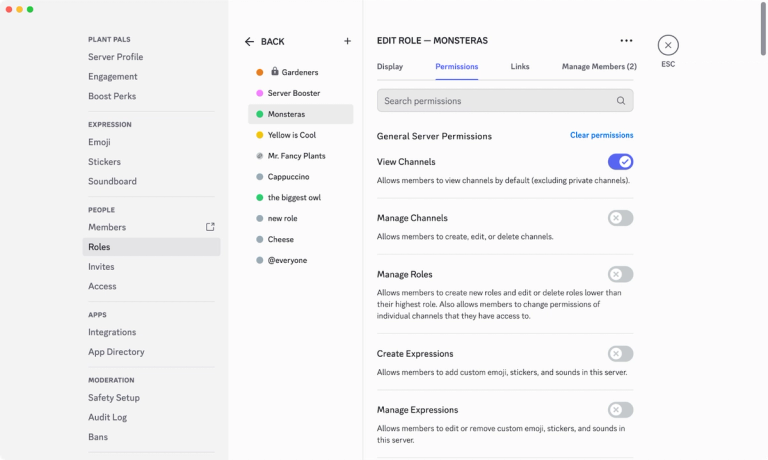
- @everyone: your baseline access. Allow the ordinary activities you intend, but leave staff management powers disabled.
- Moderator: give trusted helpers the specific moderation permissions their job needs.
- Event Organiser: keep running game nights separate from managing the whole server.
- Game and interest roles: use these to express preferences, not to grant administrative access.
- Bot roles: review each app’s requested access instead of treating automation as automatically trustworthy.
For a staff category, deny @everyone View Channel, then allow the appropriate staff role. For a read-only rules channel, allow members to view it but deny Send Messages, granting posting access to the staff who maintain it. Audit other roles that could also grant access.
Keep channels synced with their category when they should share its permissions. Synced channels follow category changes; channels with their own unsynced settings do not. Document deliberate exceptions so a later tidy-up does not expose a private room.
That Administrator bypass is particularly important when testing staff-only spaces: an administrator seeing a private channel does not mean your restrictions have failed. Discord recommends granting this permission cautiously and only when needed.
Use Community and onboarding when they solve a problem
A close-knit group can keep things simple. For a stream audience, open clan or game community, consider Server Settings > Enable Community. Setup requires safety settings, a rules channel and a channel for official Community updates; follow the checks shown rather than disabling protections to rush through.
Let newcomers choose useful channels and roles
Community Onboarding lets members answer questions that assign roles and add relevant channels to their channel list. Configure it through Server Settings > Onboarding on desktop; members can experience onboarding across devices.
The Community Onboarding requirements include at least seven Default Channels, with at least five allowing @everyone to view and send messages. The compact friends-server layout above is therefore not automatically eligible.
For the fuller example, your seven defaults could be #welcome, #rules, #general, #introductions, #clips, #looking-for-group and #event-chat. Make the final five writable by @everyone if using this arrangement to meet those requirements.
- Which games are you here for? Offer relevant game roles and channels.
- What would you like to do? Suggest casual matches, ranked play, raids or playtesting.
- Which updates interest you? Offer clearly explained, optional event-interest roles.
Keep questions short and avoid collecting personal information. Do not create filler channels just to unlock onboarding: a clear welcome message is a better fit for a server that genuinely needs only three text rooms.
Add guidance without building an obstacle course
Within Onboarding, Server Guide supports a welcome message, new-member tasks and resource pages. Useful tasks might be introducing yourself, finding your game channel and checking the next session. Rules Screening is separate and asks newcomers to agree to rules before participating.
Moderation and AutoMod: protect the session
Write rules you can apply consistently: no harassment, hate speech, doxxing, scams or unwanted advertising. Add clear spoiler expectations and explain how members should contact moderators privately. “Do not be annoying” is not a useful enforcement policy.
AutoMod is available to all servers, not just Community servers. Its official FAQ documents keyword and spam filtering, alert actions and configuration through Server Settings > AutoMod. Editing rules requires desktop and Manage Server or Administrator permission.
- Review the available commonly flagged-word filters and choose those that fit your community’s rules.
- Add custom terms for recurring abuse or scam phrases you actually encounter.
- Configure spam and mention-spam protection to suit normal conversation.
- Send alerts to a private moderator channel and assign someone to review them.
- Test legitimate game terminology and adjust false positives before tightening enforcement.
AutoMod’s available responses depend on the rule type. Administrators and members with Manage Server are exempt from filter rules, so test using an ordinary member rather than concluding that a filter is broken from your owner account.
Automation should catch obvious problems, not referee every argument. Give moderators a simple escalation policy, keep incident discussion private and provide a route to appeal mistakes.
The best Discord bots for gaming are the ones you need
Start without bots, then add one to solve a specific problem. For this setup, the strongest initial candidates are an event organiser and an optional role-management utility, not a pile of overlapping moderation systems.
sesh for organising regular sessions
sesh supports event creation, RSVPs, reminders and timezone preferences. It suits groups struggling to turn “anyone on later?” into an actual session; repeating events and some advanced RSVP features require its paid tier. Check the current feature split before planning around them.
Carl-bot for optional roles and logging
Carl-bot offers reaction roles, logging and custom commands. It is worth considering if those functions fill a genuine gap, particularly when you are not using Community Onboarding for self-selected interests. Avoid enabling duplicate moderation rules without deciding which system should handle each incident.
Discover apps through Discord’s App Directory on desktop or browser, or use the developer’s official installation route. Review permissions during authorisation, test in a limited area and remove apps you stop using. App features and subscriptions belong to their developers, not your Discord subscription.
Run game nights with events and Stage channels
Try Discord’s built-in events before installing a scheduling bot. From the server menu, choose Create Event, select the appropriate location and add the details. The Scheduled Events guide covers voice, Stage and Somewhere Else events; members who mark themselves Interested receive a notification when the event starts.
Give organisers Create Events for their own events; Manage Events allows management of other people’s events too. Include the game, mode, meeting point, expected duration and any preparation in the description.
Use normal voice rooms for matches where everyone needs to talk. Stage channels require Community and separate speakers from an audience, making them better suited to developer Q&As, clan briefings and tournament commentary. Audience capacity differs between audio-only and video or screen-sharing Stages, with boosted tiers affecting the latter.
For your first event, appoint a host and choose something easy to join: a co-op evening, beginner-friendly customs or a community challenge. A reliable weekly session gives members a reason to return.
Discord server name ideas, channel names and matching profiles
Choose a server name people can remember and say aloud. Leave yourself room to change games: a name tied to one season’s favourite shooter may feel awkward when the group moves on.
- Friends: The Respawn Room, Checkpoint Club, Late Lobby.
- Competitive clan: Iron Relay, Night Circuit, Ember Division.
- Stream community: Afterstream Arcade, The Side Quest, Bonus Round.
- Your game: Game Title Community, Game Title Playtesters, Game Title HQ.
These Discord server ideas are starting points, not availability claims. If the group needs a shared identity first, use GamerBolt’s clan name generator to brainstorm a squad name, then build the server’s theme around it.
Keep channel names functional even when the server has flavour. The Respawn Room can still have #rules and #looking-for-group. For roles, pair personality with clarity: Raid Captain is understandable, while Keeper of the Seventh Flame needs an explanation.
Members can also grab a matching name for their profile using the Discord name maker. It generates rule-compliant username ideas, not availability checks. A themed display name or permitted server nickname can provide a matching identity without changing a member’s unique username.
Test the server before launch
Invite two or three trusted testers and ask them to arrive without your help. Watch where they hesitate, then fix the layout rather than writing another page of instructions.
- Can a newcomer find the rules, general chat and tonight’s voice room?
- Are staff spaces hidden from ordinary members?
- Can members post where intended, without editing server settings?
- Do onboarding choices reveal the right channels?
- Does a harmless test trigger the intended moderation alert?
- Are event details clear enough to join without asking the host?
After the first few sessions, remove unused rooms and simplify confusing names. The best gaming server is not the biggest template: it is the one that gets your group into a game with the least fuss.
Invite friends and grow your gaming community
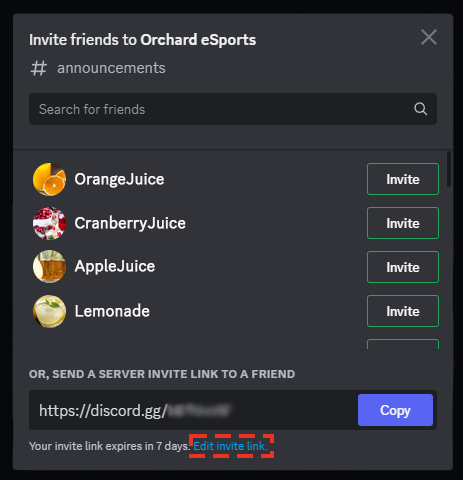
Once your testers can find their way around, open the server menu by clicking the server name and choose Invite People, or use the invite icon beside a channel. You can invite friends directly from the list or copy the server invite link to share anywhere else.
By default, a new invite link expires after seven days. Select Edit invite link to change how long it lasts or limit how many people can use it, which helps when you post a link publicly in a clip description, forum thread or stream panel. If a link ends up somewhere it should not be, revoke it from Server Settings > Invites.
FAQ
Is making a gaming Discord server free?
Yes. Discord servers are free to create, and the basic text-and-voice setup does not require server boosting. Third-party bots can charge separately for advanced features, so check their plans before relying on paid functionality.
How many channels should I start with?
For friends, try rules, general chat, looking-for-group and two voice rooms. Expand when conversations need separation. Community Onboarding has its own minimum channel requirements, so do not confuse a recommended small layout with onboarding eligibility.
Do I need Community enabled for AutoMod?
No. Discord documents AutoMod as available to all servers. Community is required for features including Community Onboarding, forum channels and Stage channels.
Can I configure everything from my phone?
No. Discord’s documentation specifies desktop configuration for Community Onboarding and AutoMod rules. Use desktop for the initial administrative setup, then check how the joining experience looks on mobile.
Which gaming bots should I install first?
None until you identify a gap. Try native events and AutoMod first; consider sesh for more involved scheduling or Carl-bot for reaction roles and logging. One useful addition beats five bots competing to welcome or warn the same member.
Can members match their names to the server theme?
Yes. Members can use themed display names or server nicknames where permissions allow. These are distinct from unique account usernames, so explain which name you want members to change rather than asking everyone to replace their login identity.

Written by
Jessica ThompsonAs a dedicated gaming journalist with over five years of experience, I've immersed myself in the ever-evolving world of video games. Currently, I contribute to Gamerbolt.com and PS6news.com, where I cover the latest in gaming news, in-depth game reviews, and industry trends. At Gamerbolt.com, I've had the privilege of shaping content strategies, writing comprehensive articles, and engaging with a passionate community of gamers. My role involves not only crafting engaging narratives but also staying ahead of the curve with the latest gaming innovations and upcoming titles.