


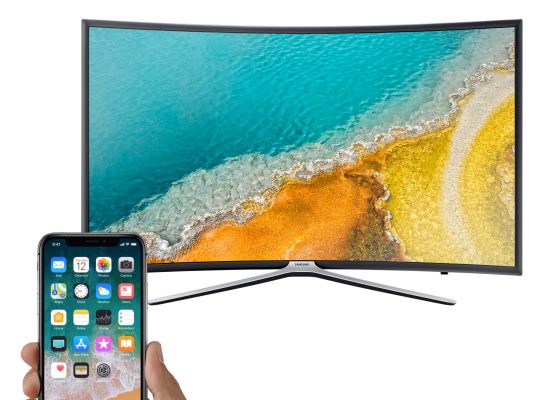

The war between Android and iOS is an ongoing one, and it’s not looking likely that it’ll end any time soon. iPhone users swear by their devices’ accessibility, out-of-the-box efficiency and ecosystem of curated apps, while Android lovers are enamoured with the customisation and versatility that their platform affords. One thing’s for certain, though; these two platforms are more indistinct than they’ve ever been. The gulf of quality which once could have been said to exist between them has narrowed significantly, mostly thanks to the efforts of South Korean giant Samsung.
Of course, Samsung doesn’t just make phones; they’re also titans elsewhere in the electronics industry, with their 2018 profits significantly bolstered by semiconductors, TVs and memory chips. Many people are extremely likely to have an iPhone as their mobile device while also proudly owning a Samsung TV. The trouble is that there’s no love lost between these two companies, so getting their devices to play ball with one another can be a little tricky. We’ve put together a handy guide on different ways to cast your iPhone’s screen to a Samsung TV, so you can join in the fun when your friends are hosting YouTube parties.
-
Use a Lightning to AV adapter
The first and most analogue method of casting your iPhone’s screen to a Samsung TV is to use a physical adapter. This is arguably also the simplest method, as it involves a couple of very easy cable connections.
Apple sells its own Lightning adapter if you’re aiming for official products, but there are a number of third-party alternatives available which are a little cheaper. All you need to do is connect the Lightning cable on the adapter to your iPhone’s charge port, then connect an HDMI cable to the port on the adapter and the TV. Within seconds, you should be seeing your screen on your Samsung TV (provided it has HDMI ports, which it almost certainly does).
A couple of quick notes here: the image quality won’t be incredible thanks to the adapter’s compression, and if you’re using a device older than the iPhone 5, you’ll need to look for a 30-pin to HDMI adapter instead; Apple doesn’t sell their version of this any more, so it’ll have to be a trawl through third-party options.
-
Use a third-party app to mirror your screen
Apple, unfortunately, doesn’t have its own app to stream your phone’s display to your TV. This is probably because their Apple TV device is intended to serve this purpose; Apple TV works seamlessly with iPhone, iPad and other iOS devices, and won’t require any setup to get working.
Thankfully, there are a number of third-party apps which will allow you to cast your screen to a Samsung TV. Most of these will provide detailed instructions on how to go about streaming the screen; the two main options you have here are Video & TV Cast and AirBeamTV. We’ll provide instructions for AirBeamTV, since it’s (in our opinion) the superior app. Please be aware that this app only supports iPhone 6S or newer, and you’ll need to be running iOS 11. This also only works on Samsung smart TVs, so those without an Internet-enabled TV will have to look elsewhere.
To mirror your screen using AirBeamTV, first download the app. Make sure your iPhone and TV are both connected to the same network. Once this is done, add the “Screen Recording” button to your iPhone’s Control Centre. You can do this by going to Settings > Control Centre, switching on “Access Within Apps”, then clicking “Customise Controls” and including “Screen Recording”.
Once all this is done, launch the AirBeamTV app. It should automatically find your TV, so if you see it on the list, select that option. Following this, access your iPhone’s Control Centre (swipe up on older iPhones, down on iPhone X), press and hold the Screen Recording button and tap “Mirror Samsung TV”. Finally, click “Start Broadcast”, and you’re ready to roll!
A quick caveat: there will be latency here, so this app isn’t really suitable for gaming. In addition, it won’t be able to mirror third-party DRM-enabled apps such as Netflix or Amazon Prime Video, so you’re better off restricting yourself to your own media files. Finally, Safari won’t play sound while it’s mirroring. That shouldn’t be too much of a problem, though.
That was our guide on how to mirror your iPhone’s screen to a Samsung TV. Pretty easy, right? Whether you’re using the physical adapter to connect your phone to your TV or you’re wirelessly casting via the app, we hope you have a great time showing everyone what’s on your device and controlling the flow of your favourite YouTube mixes.
