By
In this guide
- Quick answer: The best ways to improve PC gaming performance
- 1. Understand FPS, frame times and what is slowing your PC down
- 2. Enable Windows 11 Game Mode
- 3. Update your graphics drivers — but use the right software
- 4. Turn off unnecessary startup apps and background processes
- 5. Optimise your in-game graphics settings for higher FPS
- 6. Use DLSS, FSR or XeSS when they actually help
- 7. Check your monitor's refresh rate
- 8. Enable G-SYNC, FreeSync or variable refresh rate when supported
- 9. Try Windows 11 optimisations for windowed games
- 10. Is hardware-accelerated GPU scheduling worth enabling?
- 11. Keep Windows updated without interrupting your games
- 12. Reduce Windows visual effects if you're using an older PC
- 13. Check RAM capacity and memory configuration
- 14. Use an SSD and keep enough storage space available
- 15. Prevent overheating and thermal throttling
- 16. Optimise gaming laptop power settings
- 17. Reduce input lag for competitive gaming
- 18. Should you overclock your GPU or CPU?
- 19. Fix low FPS and stuttering: A practical troubleshooting guide
- 20. PC gaming optimisation myths worth avoiding
- 21. A 15-minute PC gaming optimisation checklist
- Frequently asked questions
- Final thoughts: Optimise for consistency, not just the highest FPS number
A powerful graphics card is only part of what makes a gaming PC feel fast. The right Windows settings, properly configured drivers, a suitable monitor and sensible in-game graphics options can make the difference between smooth gameplay and frustrating stutters.
That applies whether you've just built a high-end gaming desktop, bought your first gaming laptop or want to get a few more years out of an older machine.
But there's a catch: not every so-called PC optimisation actually improves performance. Some changes make a genuine difference, others only help particular hardware configurations, and a few popular internet tricks can make gaming performance worse.
The best way to optimise a PC for gaming is to find what's limiting performance, make targeted changes and measure the results.
This guide covers practical Windows 11 settings, graphics drivers, FPS optimisation, input latency, overheating, storage, memory and troubleshooting. It also explains which settings are worth keeping from older gaming advice — and which ones deserve a more careful approach.
Quick answer: The best ways to improve PC gaming performance
If you want to start with the essentials, work through these steps:
- Update Windows and your graphics drivers. Install legitimate updates from Microsoft or your GPU manufacturer.
- Enable Windows Game Mode. It helps Windows prioritise gaming-related activity.
- Close unnecessary background programs. Pay particular attention to heavy browsers, recording software and overlapping game launchers.
- Check your monitor's refresh rate. A 144Hz display accidentally running at 60Hz won't deliver the experience you paid for.
- Adjust demanding in-game graphics settings. Shadows, ray tracing, resolution and upscaling options often matter more than desktop tweaks.
- Check temperatures and hardware usage. Excessive heat, insufficient memory or a struggling graphics card can cause persistent frame-rate problems.
- Use variable refresh rate if supported. G-SYNC, FreeSync and compatible VRR technology can make fluctuating frame rates look smoother.
- Measure your results. Change one major setting at a time rather than applying every optimisation you find online.
You don't need to buy new hardware before trying these improvements. Equally, software adjustments cannot turn an entry-level GPU into a high-end one.
1. Understand FPS, frame times and what is slowing your PC down
Before changing anything, establish what actually needs improving.
FPS, or frames per second, describes how many images a game produces each second. Higher FPS can make movement smoother and inputs feel more responsive, particularly when paired with a high-refresh-rate display.
However, average FPS doesn't tell the whole story.
A game averaging 100 FPS might still feel unpleasant if it repeatedly pauses or produces frames at inconsistent intervals. That's why frame times and low-end FPS measurements matter.
At a steady 60 FPS, each frame takes approximately 16.7 milliseconds to produce. At 120 FPS, that's approximately 8.3 milliseconds.
If most frames arrive quickly but occasional frames take 80 milliseconds, you'll notice a hitch even when the average FPS remains respectable.
Average FPS versus 1% lows
- Average FPS provides a useful overall performance figure.
- 1% low FPS summarises slower frames and can help reveal inconsistent performance.
- Frame-time graphs show individual fluctuations, making them particularly useful for diagnosing stutter.
Many modern games include built-in benchmarking tools. You can also use a compatible GPU performance overlay or a specialist measurement tool such as CapFrameX.
For a meaningful comparison, test the same game, location, resolution and graphics settings before and after making changes.
Is your game CPU-bound or GPU-bound?
A GPU bottleneck occurs when your graphics card is the main limit on performance. This is common at higher resolutions or when demanding visual effects are enabled.
A CPU bottleneck occurs when the processor, game engine or a particular CPU thread limits how quickly new frames can be prepared. This can happen in simulation games, strategy titles, crowded multiplayer environments and games targeting very high FPS.
Typical clues include:
- GPU usage consistently near maximum: The graphics card may be the limiting factor.
- One or more CPU threads heavily loaded while GPU usage is lower: You may be CPU-limited.
- High memory usage and noticeable disk activity: System RAM may be under pressure.
- Performance declining after several minutes: Investigate temperatures, power limits and thermal throttling.
- Sudden short freezes despite decent average FPS: Investigate background tasks, memory, storage, drivers and game-specific shader compilation.
These are clues, not definitive diagnoses. A single CPU usage percentage or GPU utilisation reading cannot explain every problem.
For a wider understanding of how components work together, see our guide to next-generation PC gaming hardware and standards.
2. Enable Windows 11 Game Mode
One of the simplest settings to check is Windows Game Mode.
Microsoft designed Game Mode to help Windows prioritise games and reduce interruptions from certain background activities.
How to enable Game Mode
- Open Start and select Settings.
- Navigate to Gaming > Game Mode.
- Switch Game Mode to On.
- Launch your game normally.
You won't necessarily notice an immediate FPS increase. A modern, well-configured PC may already have plenty of available resources.
The potential benefit is often more about keeping gaming performance consistent when other activities compete for system resources.
Our recommendation: Leave Game Mode enabled unless you can reproduce a specific problem associated with it.
It's a sensible first step, but it isn't a substitute for sufficient hardware or well-optimised game settings.
3. Update your graphics drivers — but use the right software
Graphics drivers allow your operating system and games to communicate with your graphics card.
Manufacturers regularly release drivers that address compatibility problems, correct visual glitches, improve stability and sometimes enhance performance in newly released games.
Outdated drivers can contribute to crashes, graphical corruption and unexpectedly poor performance.
NVIDIA GeForce graphics cards
For current NVIDIA systems, use the NVIDIA App or download drivers through NVIDIA's official website.
The NVIDIA App provides access to supported driver updates, graphics settings, recording features and other tools.
The older GeForce Experience application is no longer the best default recommendation for a modern guide.
AMD Radeon graphics cards
For AMD systems, visit AMD's official driver and support centre.
AMD Software: Adrenalin Edition can provide driver management, performance monitoring and compatible Radeon gaming features.
Intel Arc and integrated graphics
Intel users should check Intel Graphics Support.
Gaming laptops may use manufacturer-customised graphics drivers. Where the laptop maker recommends a particular package, check compatibility before replacing it with a generic version.
Should you always install a new driver immediately?
Not necessarily.
If your system is stable and you primarily play older games, there may be little reason to install every optional driver on release day.
However, if you've just bought a new game, upgraded your GPU or encountered a graphics-related problem, checking the latest driver release notes is worthwhile.
When a problem appears immediately after a driver update, rolling back to a known stable version may be more useful than continuing to tweak Windows.
Avoid downloading drivers from unofficial driver-update websites or installing third-party applications that promise to update every component automatically.
4. Turn off unnecessary startup apps and background processes
Many programs configure themselves to launch automatically when you sign in.
One application might use very few resources. Several game launchers, browser processes, messaging applications, RGB utilities and updaters running together can have a more noticeable effect.
The original advice to streamline startup applications still holds up.
How to disable unnecessary startup apps
- Open Settings > Apps > Startup.
- Review which applications are enabled.
- Disable programs you don't need automatically launching.
- Alternatively, open Task Manager > Startup apps to review their startup impact.
You can still open a disabled application manually whenever you need it.
What should you close before gaming?
Start with applications that genuinely consume resources.
Examples include browsers with numerous active tabs, background downloads, video editors, unnecessary screen-recording applications and software performing scans or synchronisation.
Voice chat applications such as Discord may be essential to your gaming session, so keep them open if you're using them.
Likewise, don't disable antivirus protection, device drivers or essential system services just to reduce the number of processes visible in Task Manager.
Do overlays reduce FPS?
They can, but not universally.
Steam, Discord, GPU recording software and other gaming applications may all offer in-game overlays. Their performance impact depends on the software, hardware and game.
If you're experiencing unexplained stutter or crashes, temporarily disable nonessential overlays and test again.
Don't assume every background process is harmful. The aim is to remove unnecessary competition for resources, not strip Windows down until useful features stop working.
5. Optimise your in-game graphics settings for higher FPS
For many games, this is where the most meaningful performance gains are found.
Changing graphics settings directly reduces the work your computer must perform to render each frame.
The trick is to target settings that consume substantial resources without making the game noticeably worse to play.
Which graphics settings should you change first?
Graphics setting
What it affects
When to reduce it
Resolution / render scale
Number of pixels rendered
When your GPU cannot maintain the target FPS
Ray tracing
Advanced lighting, reflections and shadows
When GPU performance is limited
Shadows
Shadow quality and distance
When demanding scenes cause frame-rate drops
Volumetric effects
Fog, clouds, smoke and lighting
When atmospheric scenes are particularly expensive
Reflections
Reflected scenery and surfaces
When high-quality reflections cost too much performance
View distance
How far detailed objects are rendered
When open-world performance struggles
Anti-aliasing
Smoothing of jagged edges
When an expensive method reduces FPS significantly
Textures
Surface detail and memory usage
Primarily when available VRAM is insufficient
Actual performance differences depend on the game engine and hardware.
Start with High rather than Ultra
Ultra presets are rarely a sensible requirement for enjoyable PC gaming.
In some games, the visual difference between High and Ultra is small compared with the performance cost. In others, particular Ultra effects can be worthwhile.
Start with the High preset, establish your frame rate and adjust individual settings.
If performance is already comfortable, raise whichever options matter most to you.
If FPS is disappointing, reduce expensive effects individually before dropping everything to Low.
Should you lower your resolution?
Resolution has a major effect on GPU workload.
A 1920 × 1080 image contains around 2.1 million pixels. A 2560 × 1440 image contains around 3.7 million, while 3840 × 2160 contains approximately 8.3 million.
That means 4K contains four times as many pixels as 1080p.
Rendering cost doesn't scale perfectly with pixel count, but the difference helps explain why moving to 4K can be demanding.
Before changing the display's native resolution, investigate built-in upscaling options. They may offer a better balance between image quality and performance.
6. Use DLSS, FSR or XeSS when they actually help
Modern games increasingly offer image reconstruction and upscaling technologies.
These systems typically render part of the image at a lower internal resolution, then reconstruct it for the target output resolution.
That can reduce GPU rendering demands while keeping the final image sharper than a simple low-resolution display mode.
The main technologies include:
- NVIDIA DLSS: Available in supported games on compatible GeForce hardware, with features varying by GPU generation and game.
- AMD FidelityFX Super Resolution (FSR): A family of upscaling and frame-generation technologies, with compatibility varying by version and graphics card.
- Intel XeSS: An upscaling technology supported by compatible games and hardware.
The exact options available depend on the game and your GPU.
Which upscaling mode should you choose?
For a GPU-limited game, try the Quality preset first.
This normally offers a more conservative compromise between internal rendering resolution and visual detail than Performance or Ultra Performance modes.
If the frame rate is still too low, try Balanced.
More aggressive settings can increase performance but may introduce softer details, shimmering or visible reconstruction artefacts.
Upscaling isn't a guarantee of better performance in CPU-limited games.
What about frame generation?
Frame generation creates additional displayed frames between traditionally rendered frames.
It can make compatible games appear smoother, but a higher displayed FPS figure doesn't automatically mean equally responsive controls.
Input responsiveness still depends heavily on the underlying rendered frame rate, frame pacing and latency management.
For a competitive shooter, prioritise a strong real rendered frame rate and low latency. For a demanding single-player game, frame generation may be a more attractive trade-off.
AMD provides a detailed overview of its FSR technologies and compatibility.
7. Check your monitor's refresh rate
It's entirely possible to own a high-refresh-rate monitor without actually using its maximum refresh rate.
Windows may be configured to output at a lower frequency than the monitor supports.
A game can report more than 100 FPS while the display itself remains configured at 60Hz.
How to check the refresh rate in Windows 11
- Open Settings > System > Display.
- Select Advanced display.
- Choose the correct monitor.
- Under the refresh-rate options, select a suitable supported value.
If the expected refresh rate isn't available, check the display cable, connection type, monitor settings, selected resolution and GPU output capabilities.
Does 144Hz make a difference over 60Hz?
At 60Hz, a display refreshes approximately every 16.7 milliseconds.
At 144Hz, the interval is approximately 6.9 milliseconds.
That doesn't mean every player suddenly becomes more skilled, but higher refresh rates can make camera movement, scrolling and fast action appear smoother.
They're particularly attractive for competitive shooters and fast-paced games.
For further reading, GamerBolt has previously explored why your gaming monitor matters.
8. Enable G-SYNC, FreeSync or variable refresh rate when supported
Variable refresh rate (VRR) allows a compatible display to adjust its refresh timing to better match the frames being delivered by the graphics system.
Without synchronisation, a monitor may begin showing a new frame while a previous one is still being displayed. This can produce visible screen tearing.
Traditional vertical synchronisation, or V-Sync, can prevent tearing but may introduce additional latency or uneven behaviour when performance fluctuates.
VRR can provide a smoother compromise within the monitor's supported operating range.
NVIDIA G-SYNC
If you have a compatible monitor and NVIDIA GPU:
- Open NVIDIA Control Panel.
- Navigate to Display > Set up G-SYNC.
- Enable G-SYNC or G-SYNC Compatible mode if available.
- Choose the supported display and preferred fullscreen/windowed configuration.
- Apply the settings.
NVIDIA provides official G-SYNC setup instructions.
AMD FreeSync
If your monitor and graphics hardware support AMD FreeSync, check the monitor's on-screen settings and relevant AMD Software display options.
Should you cap FPS?
A frame-rate cap can help reduce unnecessary GPU work and improve consistency in some games.
For VRR setups, a cap slightly below the monitor's maximum refresh rate is a common starting point, although the ideal configuration depends on your game, GPU and synchronisation settings.
For competitive gaming, the latency implications of V-Sync and FPS limits deserve separate testing.
The important point: A stable 100 FPS can feel preferable to a wildly fluctuating frame rate that frequently jumps between much higher and lower values.
9. Try Windows 11 optimisations for windowed games
Modern PC gaming isn't restricted to exclusive fullscreen mode.
Many players prefer borderless windowed mode because it makes switching between a game, Discord, browser tabs and other applications easier.
Windows 11 includes a feature called Optimisations for windowed games, designed to improve presentation behaviour for certain DirectX 10 and DirectX 11 games running in windowed or borderless modes.
How to check the setting
- Open Settings > System > Display > Graphics.
- Find Optimisations for windowed games under the available default graphics settings.
- Enable the feature if it is supported and not already active.
- Restart the game.
Microsoft explains that the feature can reduce frame latency by changing how compatible games present frames. It may also enable related display capabilities on supported systems.
It won't necessarily improve every game, particularly titles that already use modern presentation methods.
If a particular game develops a problem, Windows also offers per-application graphics settings.
For the technical details, see Microsoft's official guide to windowed-game optimisations.
10. Is hardware-accelerated GPU scheduling worth enabling?
Hardware-accelerated GPU scheduling, often abbreviated to HAGS, changes how certain GPU scheduling responsibilities are handled between Windows and compatible graphics hardware.
Some older PC optimisation guides describe this setting as an automatic FPS boost.
That's misleading.
The feature changes how work is scheduled; it doesn't create additional graphics processing power.
How to find the setting
On supported Windows 11 hardware, open:
Settings > System > Display > Graphics
Look under the available graphics settings for Hardware-accelerated GPU scheduling. The location and availability can vary with Windows version, GPU and driver support.
A restart is normally required after changing it.
Should it be on or off?
There isn't a universal answer for every PC.
Some combinations of games and graphics hardware may benefit, while others show little difference. Particular configurations may also require the feature for certain graphics technologies.
If it's already enabled and your games run well, there is no reason to change it simply because a video claims that turning it off will increase FPS.
If you're troubleshooting an unexplained issue, compare behaviour with the setting enabled and disabled, provided the feature is supported.
Microsoft's DirectX explanation of hardware-accelerated GPU scheduling is useful background for understanding what the feature actually does.
11. Keep Windows updated without interrupting your games
Windows Update is essential for security, stability and compatibility.
However, downloads, installations and restart notifications can be frustrating during a gaming session.
The right solution is to manage updates, not permanently disable them.
Set your active hours
- Open Settings > Windows Update.
- Select Advanced options.
- Find Active hours.
- Configure Windows to avoid scheduling automatic update restarts during the hours you're normally using your PC.
You can also schedule pending restarts for convenient times.
Keep Windows security updates enabled.
What about Windows 10?
Windows 10 reached its general end-of-support date on 14 October 2025.
If you're still gaming on Windows 10, check Microsoft's current support and Extended Security Updates options. Moving to a supported version of Windows is preferable where your hardware permits it.
An operating-system upgrade won't automatically deliver a large FPS improvement, but security support and future game compatibility matter too.
12. Reduce Windows visual effects if you're using an older PC
Windows includes animations, transparency and other interface effects.
On a reasonably modern gaming desktop, switching them off is unlikely to transform game performance.
However, on an older machine with limited graphics and memory resources, simplifying the Windows interface may improve desktop responsiveness.
How to reduce animations
- Open Settings > Accessibility > Visual effects.
- Turn off Animation effects if preferred.
- Consider disabling transparency effects.
- Compare how Windows feels before and after the change.
You can also search Windows for advanced performance settings to adjust additional visual effects.
It's important to distinguish Windows interface responsiveness from in-game FPS.
If a demanding game is GPU-limited, disabling menu animations isn't going to solve the underlying problem.
This is a lower-priority tweak, not a substitute for graphics optimisation.
13. Check RAM capacity and memory configuration
System memory is important for gaming, particularly when modern titles, browsers, voice chat and background applications are running simultaneously.
Insufficient RAM can cause applications to compete for memory, potentially increasing loading delays or stuttering.
How much RAM do you need for PC gaming?
There's no single answer for every game.
- 8GB: May still be sufficient for lighter or older titles, but restrictive for many modern gaming setups.
- 16GB: A practical starting point for a wide range of games.
- 32GB: Useful for demanding titles, heavy multitasking, modded games and some content-creation workflows.
- 64GB or more: Normally unnecessary for gaming alone unless you have specialist workloads.
Before buying more RAM, check the memory requirements of the games you actually play.
Check whether your RAM is running at its intended speed
Some desktop systems support memory profiles such as Intel XMP or AMD EXPO.
Compatible memory kits may run at conservative default settings until a profile is enabled in the motherboard firmware.
Enabling a supported memory profile can improve performance in some CPU-sensitive workloads, but these profiles are technically overclocking configurations and aren't guaranteed to be stable on every combination of hardware.
Check motherboard and memory compatibility first.
If you aren't confident navigating BIOS or UEFI settings, leave the system at its stable configuration or consult the hardware documentation.
What about dual-channel memory?
Compatible dual-channel memory configurations can improve available memory bandwidth.
The benefit varies by game and hardware, but memory configuration can be particularly important for integrated graphics that rely on system RAM.
14. Use an SSD and keep enough storage space available
Storage technology makes a major difference to how a gaming PC feels.
An SSD can significantly reduce game loading times compared with a traditional mechanical hard drive.
It can also improve how quickly certain games access assets, although installing a game on a faster drive doesn't automatically increase average FPS.
Modern titles may stream textures and other data during gameplay, making storage performance relevant to the overall experience.
SATA SSD versus NVMe SSD
A SATA SSD is a major upgrade over a traditional hard drive for many older computers.
An NVMe SSD can provide substantially greater data-transfer capability, although real-world gaming differences depend on the title and workload.
Windows 11's DirectStorage capabilities also depend on compatible hardware and game support.
Keep free space available
Avoid filling your system drive completely.
Windows and games need room for updates, temporary files and other operations.
Open Settings > System > Storage to review disk usage, remove unwanted files and configure Storage Sense where appropriate.
Be careful when deleting downloads, saved game files or other personal data.
If your SSD is nearly full, freeing space is sensible maintenance. It isn't a guaranteed way to add FPS to every game.
15. Prevent overheating and thermal throttling
A gaming PC generates heat, particularly when the processor and graphics card are heavily loaded.
Cooling systems are designed to manage that heat, but excessive temperatures or insufficient cooling can limit performance.
When hardware approaches thermal or power limits, it may reduce operating speeds to protect itself.
This is commonly described as throttling.
Signs that heat may be affecting performance
- FPS starts well but drops during longer sessions.
- Fans become unusually loud.
- The PC becomes unstable during demanding games.
- CPU or GPU clocks fall as temperatures rise.
- A laptop performs much worse on a soft surface that blocks ventilation.
How to improve cooling
Start with basic maintenance:
- Shut down the PC and disconnect power before cleaning.
- Remove dust from accessible vents and filters using suitable methods.
- Ensure fans and airflow paths aren't obstructed.
- Check that case fans operate correctly.
- Keep gaming laptops on a firm, ventilated surface.
- Review temperatures using reliable monitoring software.
Avoid dismantling a power supply or attempting unfamiliar electrical repairs.
Don't assume every high temperature means a fault. Modern processors and GPUs have different designed operating ranges.
Compare observed behaviour with manufacturer specifications rather than relying on arbitrary temperature thresholds.
Does a cooling pad help a gaming laptop?
A suitable cooling pad may improve airflow on some laptop designs, but results depend on the location of the laptop's air intakes and cooling arrangement.
Keeping ventilation clear is the priority.
16. Optimise gaming laptop power settings
Gaming laptops require a slightly different approach from desktops.
Many laptops balance graphics performance, fan noise, heat and battery life through power-management profiles.
Plug in the charger for demanding games
Running a gaming laptop on battery can activate power restrictions that substantially reduce CPU and GPU performance.
For demanding games, use the manufacturer's recommended power adapter.
Choose an appropriate performance profile
Depending on your system, you may find relevant options under:
Settings > System > Power & battery
Your laptop manufacturer may also provide its own control software, with modes such as Silent, Balanced or Performance.
Use a performance-focused profile when gaming and appropriate for the available cooling.
Expect more heat, noise and power consumption.
Make sure the game is using the correct GPU
Some laptops contain both integrated and discrete graphics hardware.
Where supported, open Settings > System > Display > Graphics, select the game and review its graphics preference.
If the game is unexpectedly running on a low-power graphics processor, choosing the high-performance GPU may help.
Actual GPU selection can also depend on manufacturer settings, display connections and hybrid-graphics behaviour.
17. Reduce input lag for competitive gaming
FPS and input latency are related, but they aren't identical.
Input latency is the delay between an action — such as moving a mouse or pressing a button — and the corresponding result appearing on screen.
It can involve the mouse or controller, game engine, CPU, GPU, frame queue and display.
For competitive gaming, responsiveness may matter more than the highest possible graphics quality.
Practical ways to reduce latency
- Maintain a stable rendered frame rate.
- Use a suitable high-refresh-rate monitor.
- Avoid unnecessary graphics settings that overload the GPU.
- Enable a game's supported low-latency technology where appropriate.
- Review V-Sync, VRR and FPS-cap settings together.
- Disable unnecessary recording or overlay features if they create measurable problems.
NVIDIA Reflex and Radeon Anti-Lag
Some supported games include NVIDIA Reflex, designed to reduce system latency through closer coordination of the rendering pipeline.
AMD also offers Radeon latency-related technologies, with supported features depending on the GPU, driver and game.
These aren't identical technologies, and their benefits depend on the configuration.
Where a game offers a built-in low-latency option, review its compatibility and test responsiveness rather than stacking unrelated driver tweaks without understanding their interaction.
NVIDIA's system latency optimisation guide provides additional technical background.
Can a controller affect perceived responsiveness?
Yes. Controller connection, polling behaviour, stick response and game input processing all contribute.
However, an advertised polling rate doesn't directly equal end-to-end input latency.
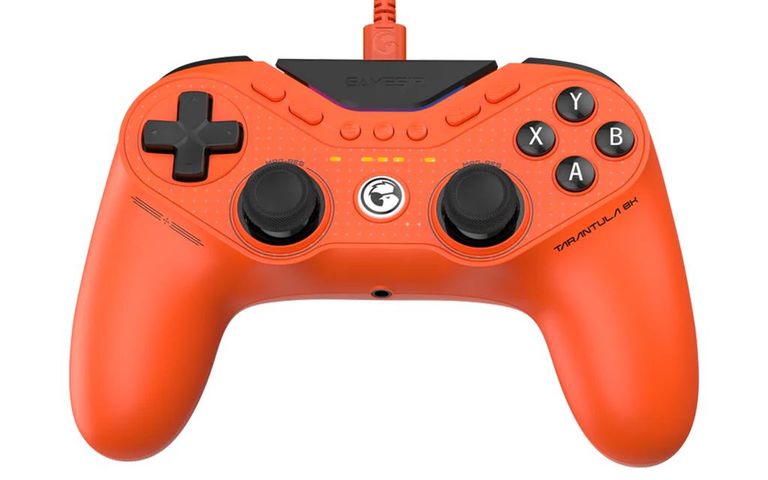
For an example of why impressive specifications need careful interpretation, read our GameSir Tarantula 8K PC controller review, which examines whether an 8,000Hz polling rate offers a meaningful gaming benefit.
18. Should you overclock your GPU or CPU?
Overclocking can increase hardware operating speeds beyond a manufacturer's standard settings or specifications.
It can sometimes improve gaming performance, particularly when a component is limiting frame rates.
However, it's not the first optimisation we recommend.
Potential disadvantages
Overclocking may increase:
- Power consumption.
- Heat output.
- Fan noise.
- Instability and crashes.
- The risk of data loss if the system becomes unstable.
Performance gains also vary, and they may be relatively small.
A faster clock speed doesn't automatically translate into an equivalent increase in FPS.
Is GPU overclocking worth trying?
For experienced users with adequate cooling and a specific performance goal, cautious testing may be reasonable.
Use trusted manufacturer-supported tools, understand the potential risks and verify stability thoroughly.
Beginners will normally get more predictable results from correct drivers, sensible graphics settings and adequate cooling.
We would not recommend applying a generic 5–10% overclock simply because an online guide suggests it.
Some users may prefer undervolting or power tuning for better temperature and noise characteristics, but those changes also require hardware-specific knowledge and stability testing.
19. Fix low FPS and stuttering: A practical troubleshooting guide
If your games still perform badly after basic optimisation, try identifying the symptoms rather than making random changes.
Problem: FPS is consistently lower than expected
Check the game's resolution and graphics preset.
Confirm that the correct GPU is being used, particularly on a laptop.
Compare performance with published results from genuinely similar hardware, remembering that test scenes, drivers and game versions can differ.
If GPU usage is consistently high, reduce demanding graphics options.
If the GPU isn't heavily occupied, investigate CPU performance, power limits, memory or game-engine restrictions.
Problem: Games stutter despite high average FPS
Monitor frame times.
Check whether the stutter appears during particular events, such as entering a new area, loading assets or encountering a new visual effect.
Possible causes include shader compilation, background processes, memory pressure, VRAM limitations and game-specific problems.
Some stutter originates in the game itself and cannot be completely fixed through Windows settings.
Problem: Performance gets worse the longer you play
Check temperatures, GPU and CPU clocks and power behaviour.
Investigate blocked vents, ineffective cooling and manufacturer performance limits.
Also consider whether a particular game has a memory-management problem.
Problem: A game crashes after a driver update
Review the driver's release notes and known issues.
Check game updates and integrity verification through the relevant launcher.
If the issue started immediately after a driver update, consider returning to the previous stable version.
Don't start by deleting system files or downloading random repair utilities.
Problem: Multiplayer gaming feels laggy, but FPS is good
This may be a network problem rather than a rendering problem.
Check whether you're experiencing high ping, packet loss or an unstable Wi-Fi connection.
Use a wired Ethernet connection where practical and compare network performance independently from graphics performance.
Reducing shadow quality won't fix packet loss.
Problem: One game runs badly, but others are fine
Investigate that game's specific patches, graphics settings, known problems and hardware requirements.
A single poorly performing title is not proof that Windows needs a complete reinstall.
20. PC gaming optimisation myths worth avoiding
There's no shortage of videos promising enormous gaming performance improvements from a handful of secret Windows settings.
Be especially cautious about the following claims.
"Disable every Windows service for maximum FPS"
This can break useful operating-system features, hardware functionality and security protections.
Only disable services when you understand their purpose and have identified a specific problem.
"Registry tweaks always reduce gaming latency"
Claims of universal latency improvements from undocumented registry changes are rarely supported by reliable, repeatable tests.
Avoid copying unfamiliar commands into an administrator terminal simply because they're described as gaming optimisations.
"A RAM cleaner will make every game smoother"
Windows already manages memory.
Some memory-cleaning utilities may disrupt normal caching or create extra work rather than improve performance.
Investigate actual memory pressure before installing more software.
"The latest driver always gives more FPS"
A driver may improve one game, fix another and have little effect on a third.
Update for a reason and compare results.
"Every setting should be on Ultra"
Ultra settings are optional visual choices, not a requirement for experiencing a game properly.
The best configuration is the one that gives you acceptable visual quality and consistently enjoyable performance.
"A gaming optimiser app can fix any slow PC"
Be sceptical of software that promises to automatically transform performance by disabling system components or applying dozens of unexplained modifications.
Transparent, reversible settings are preferable.
21. A 15-minute PC gaming optimisation checklist
If you've reached this point and want a practical routine, here's an efficient order of operations.
Minutes 1–3: Establish your starting point
Launch a game you know well, note the graphics preset and resolution, and record average FPS plus frame-time behaviour if available.
Minutes 4–6: Check the basics
Confirm Game Mode is enabled, review the display refresh rate and check for obvious driver or Windows problems.
Minutes 7–9: Reduce background activity
Close applications you don't need, pause unnecessary downloads and temporarily disable optional overlays if you're troubleshooting.
Minutes 10–12: Optimise graphics
Try the High preset, reduce expensive effects and test Quality-mode upscaling if the game supports it.
Minutes 13–15: Measure again
Return to the same test scene and compare performance.
Record what changed.
If a setting doesn't help, consider restoring its previous value.
Once you've identified useful improvements, save the game's configuration and avoid changing everything again without a reason.
Frequently asked questions
How can I increase FPS on Windows 11?
Start by updating your graphics drivers, enabling Game Mode, checking the refresh rate and reducing demanding in-game graphics settings. If performance remains low, investigate whether the CPU, GPU, RAM or cooling system is limiting the game.
Does Windows 11 Game Mode improve FPS?
It can help gaming performance or consistency on some systems, but the benefit varies. Game Mode doesn't guarantee a large FPS increase, especially on an otherwise well-configured PC.
Should hardware-accelerated GPU scheduling be on or off?
There's no universal best setting. Its effect depends on your hardware, driver and games. Leave a stable configuration alone unless you have a reason to test the alternative or a supported feature requires a particular setting.
Does disabling Windows animations improve gaming?
It may make the Windows interface feel more responsive on some older devices, but it usually isn't a major source of in-game FPS gains.
Is 16GB of RAM still enough for gaming?
For many games, yes. However, some demanding games, heavily modded titles and multitasking setups benefit from 32GB. Check game requirements and actual memory use before upgrading.
Will an SSD increase FPS?
Usually, its biggest advantages are faster loading and improved storage responsiveness. Some games also benefit during asset streaming, but an SSD doesn't automatically increase average frame rates.
Is 60 FPS enough for PC gaming?
A stable 60 FPS can provide an enjoyable experience in many games, particularly slower-paced or cinematic titles. Competitive players may prefer higher FPS and refresh rates for smoother motion and responsiveness.
Is DLSS or FSR better than lowering the resolution?
In supported games, quality-focused upscaling can provide a better-looking result than simply reducing the display resolution. However, image quality and performance vary by technology, game and GPU.
Why is my gaming PC suddenly running slowly?
Common causes include a recent software or driver change, background activity, overheating, insufficient memory, a demanding game update or an incorrect power setting. The most useful first step is to identify what changed and measure system behaviour while the problem occurs.
How often should I optimise my gaming PC?
You don't need a daily optimisation routine. Review drivers, storage, temperatures and startup software periodically, and investigate specific problems as they arise.
Final thoughts: Optimise for consistency, not just the highest FPS number
Getting the most from a gaming PC isn't about activating every performance setting or downloading software that promises miraculous results.
It's about understanding your hardware and choosing settings that suit the games you play.
For most people, the best starting points are straightforward: keep legitimate drivers up to date, configure Windows correctly, avoid unnecessary background activity, make sure your monitor is running properly and choose graphics settings your hardware can sustain.
More advanced changes — including hardware-accelerated GPU scheduling, memory profiles, overclocking and latency tuning — are worth exploring when there's a clear reason and a reliable way to measure the outcome.
Above all, remember that stable frame times and responsive gameplay matter more than an impressive FPS screenshot.
If you're still deciding what hardware you need, our beginner's guide to getting into PC gaming and first-time PC building advice offer useful starting points.
The goal isn't simply a faster benchmark. It's a PC that makes your favourite games feel better to play.

Written by
Jessica ThompsonAs a dedicated gaming journalist with over five years of experience, I've immersed myself in the ever-evolving world of video games. Currently, I contribute to Gamerbolt.com and PS6news.com, where I cover the latest in gaming news, in-depth game reviews, and industry trends. At Gamerbolt.com, I've had the privilege of shaping content strategies, writing comprehensive articles, and engaging with a passionate community of gamers. My role involves not only crafting engaging narratives but also staying ahead of the curve with the latest gaming innovations and upcoming titles.